Replace Win+V Shortcut Windows 10+
Why Replace It?
The native Win + V Clipboard History in Windows is limited. It only stores a small number of items locally and doesn’t work across devices.
Octoclip provides a more powerful solution:
- Full clipboard history
- Cross-device sync (Nearby Sync, Cloud Sync)
- Favorites and Aliases
- Quick search and input
By remapping Win + V to Octoclip, you can enjoy a seamless clipboard experience.
Method Comparison
| Method | Recommended | Best For | Features |
|---|---|---|---|
| PowerToys | ⭐⭐⭐⭐⭐ | Normal users | Easy to install, GUI-based, stable |
| AutoHotKey | ⭐⭐⭐ | Advanced users | More flexible, script-based, requires manual setup |
Method 1: PowerToys (Recommended)
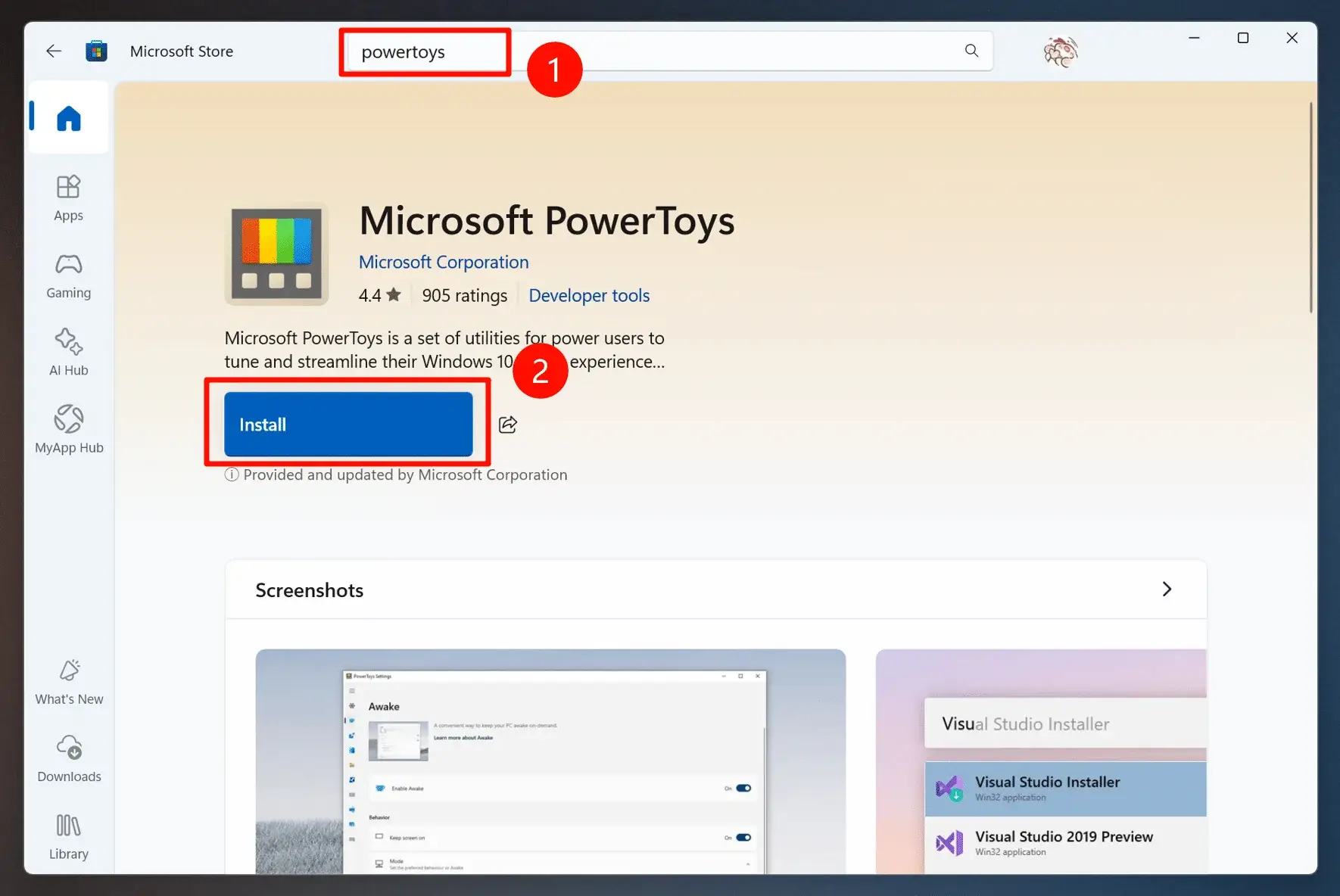
Step 1: Install PowerToys
Download from the Microsoft Store or via this link.
Step 2: Remap Win+V
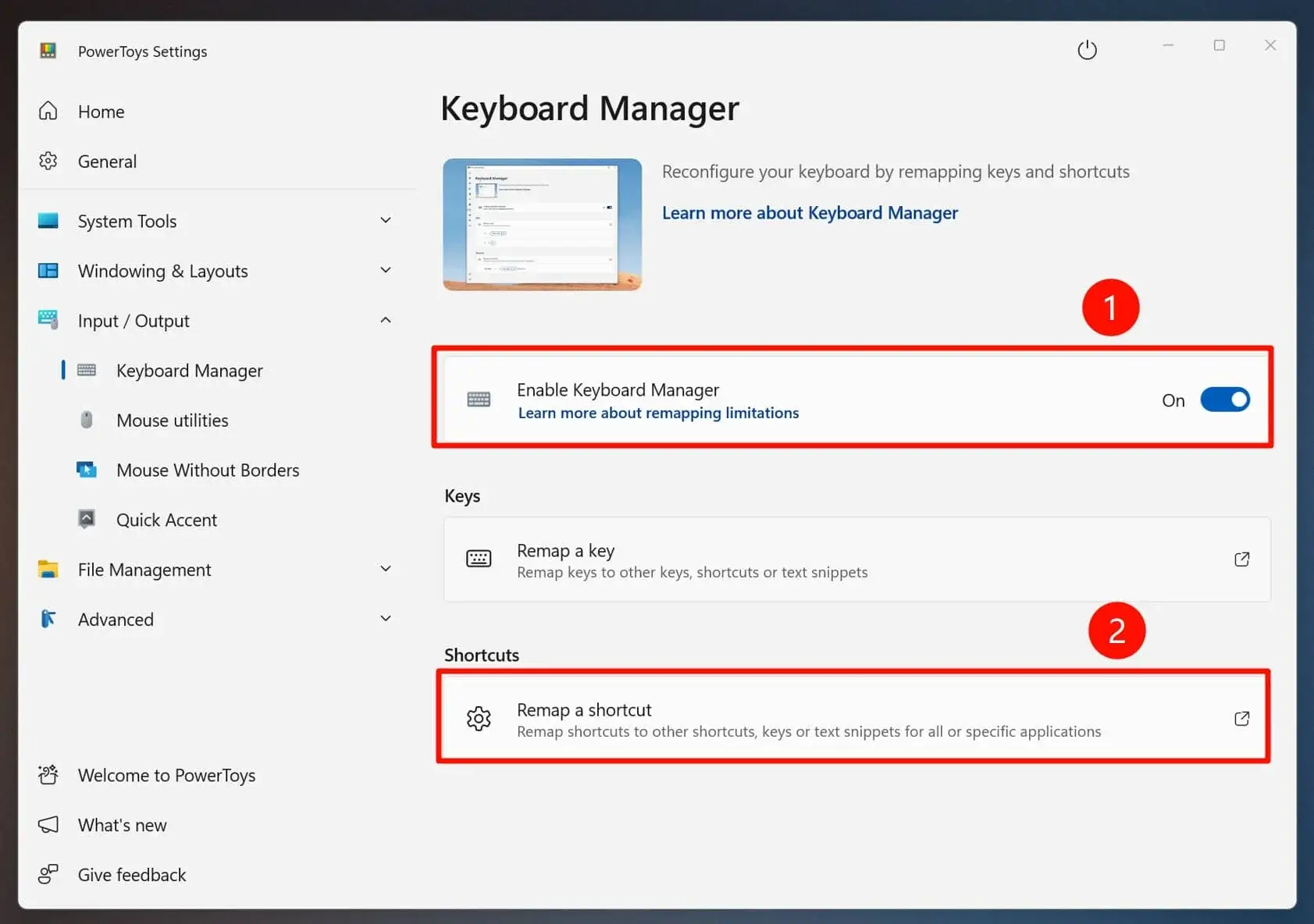
Open Keyboard Manager → “Remap Shortcut”.
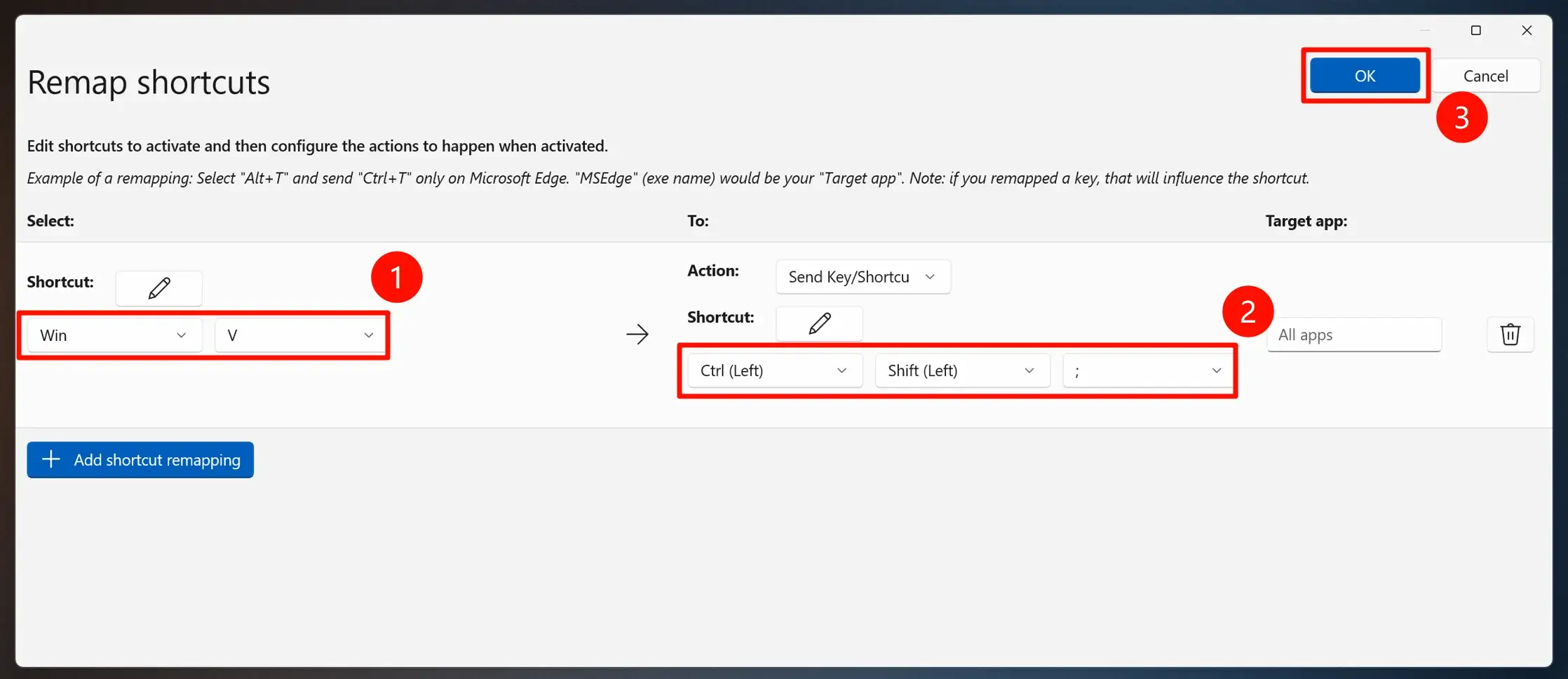
- Set
Win + vas the key to be replaced. - Map it to your Octoclip Clipboard Shortcut.
Where to find the Octoclip shortcut?
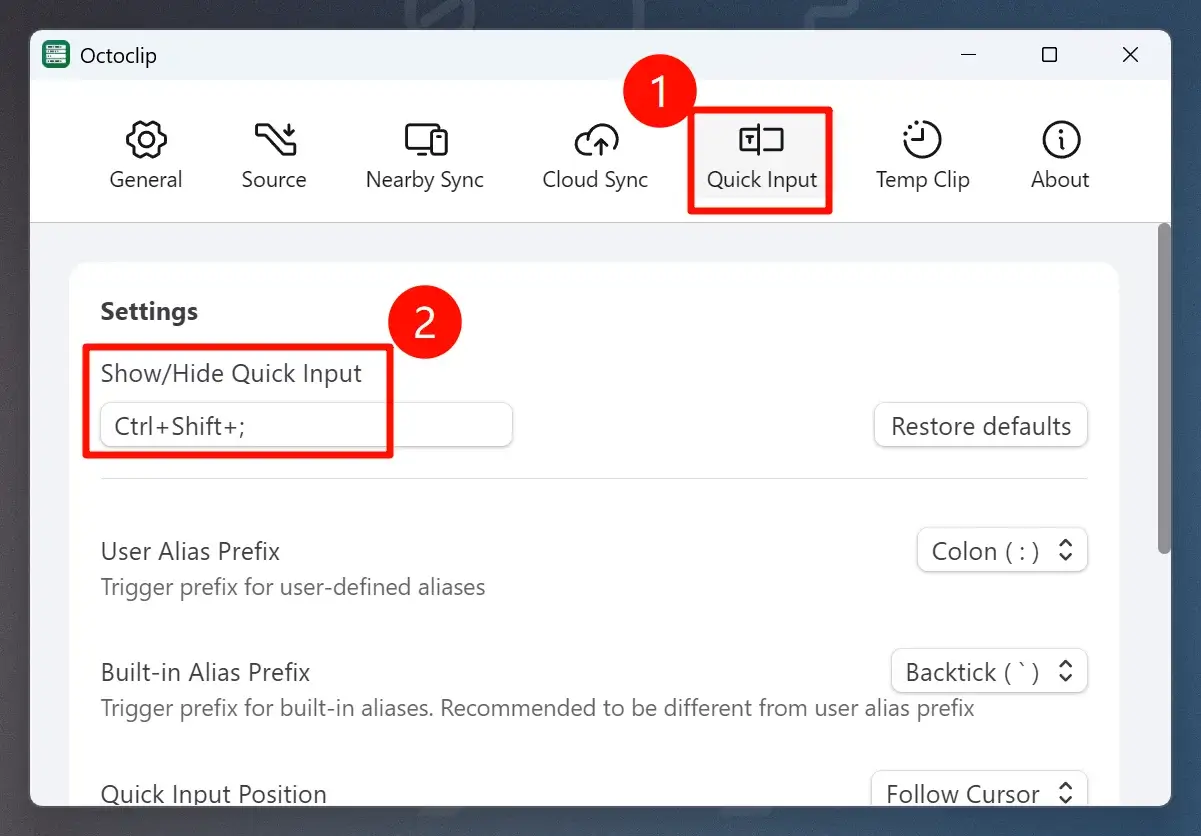
Now pressing Win + v will open Octoclip instead of Windows Clipboard History.
Method 2: AutoHotKey (Advanced)
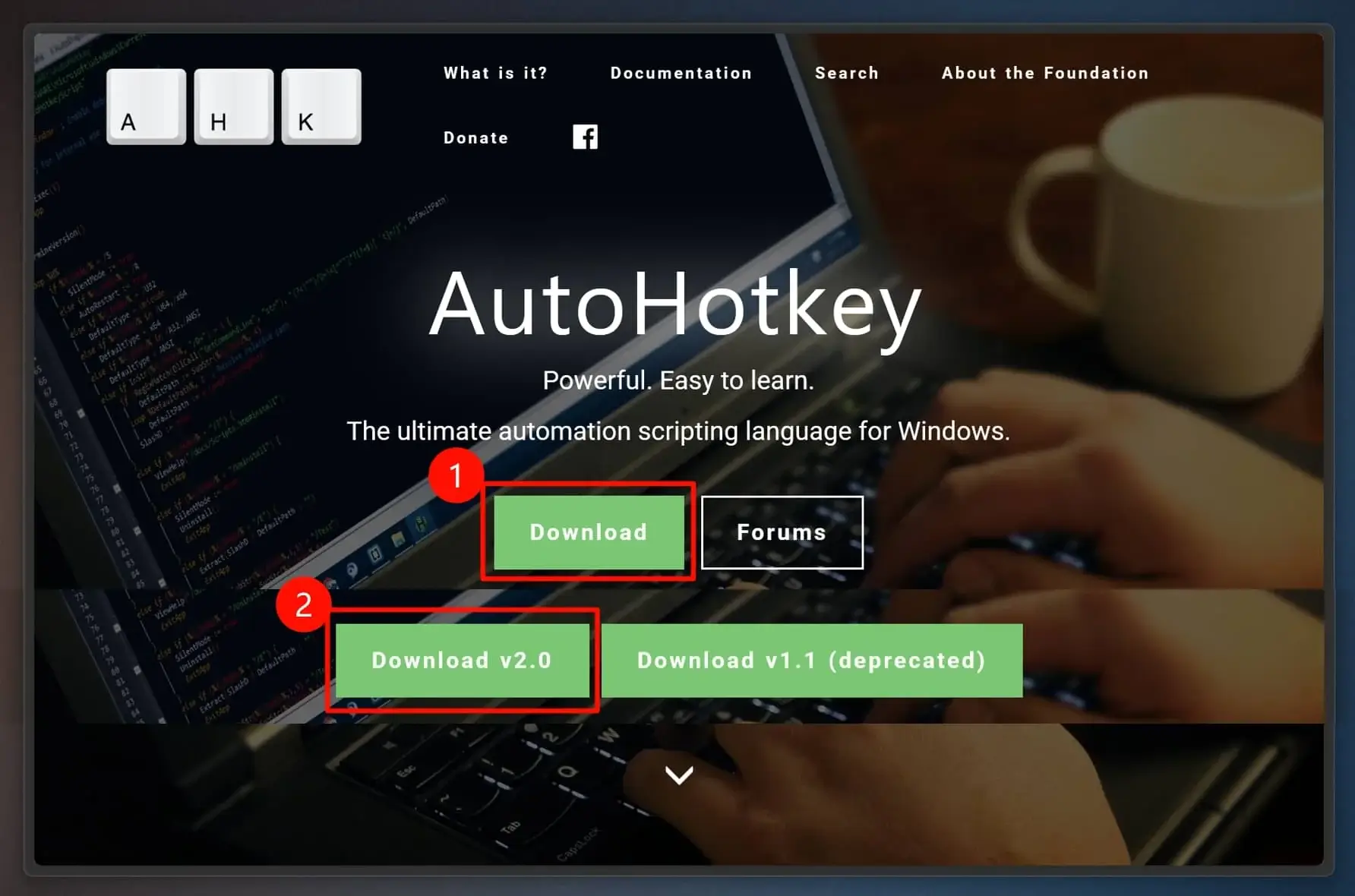
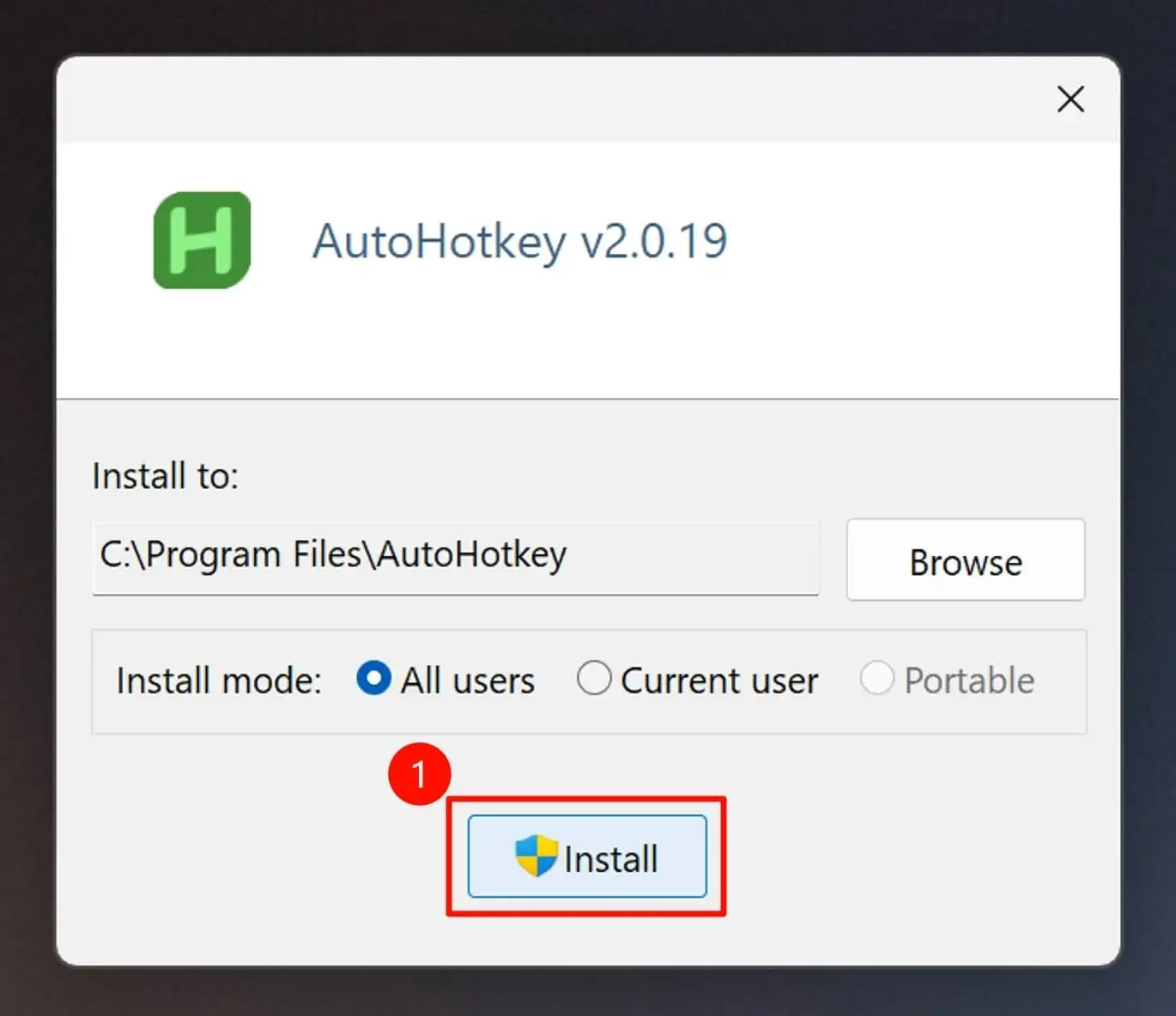
Step 1: Install AutoHotKey
Download from the official website.
Step 2: Create the Script
Select your Octoclip shortcut below and click Generate Script. Or create a .ahk file manually and paste the code.

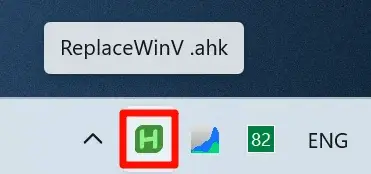
Run the script. A green H icon will appear in the taskbar. Now Win + v is redirected to Octoclip.
Safety Note
The script only contains simple key remapping, no system-level modifications. It’s safe to use.
Key symbol reference
| Symbol | Key | Description |
|---|---|---|
^ | Ctrl | Control key |
+ | Shift | Shift key |
! | Alt | Alt key |
# | Win | Windows logo key |
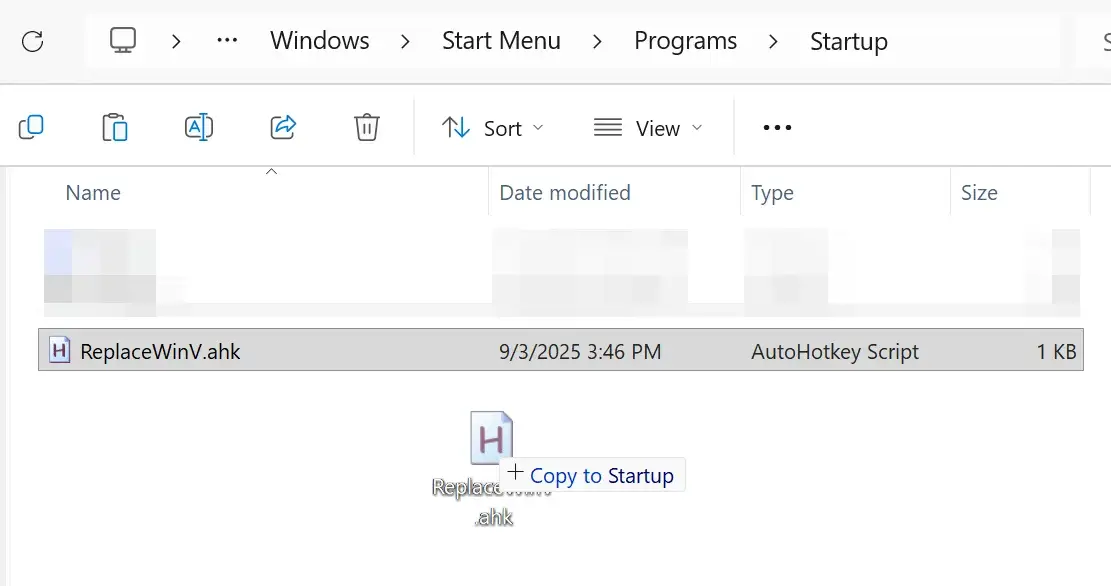
Step 3: Auto Start on Boot (Optional)
Press Win + R, type shell:startup, and copy the script into the folder.
How to Restore Default Win+V
- PowerToys: Delete the remapping.
- AutoHotKey: Close or delete the script.
This restores the native Windows Clipboard History.
FAQ
Q: Win+V doesn’t work after setup?
A: Ensure PowerToys or the AHK script is running. Check for conflicts.
Q: Can I still keep the original Clipboard History?
A: Yes. You can remap it to Ctrl + Win + V if you want both.
Q: Does it affect other shortcuts?
A: No, only Win + V is modified.
Author Note
This article was contributed by Octoclip community user @wwxiaoqi. Thanks for sharing!